How to Make a Product Detail Page with AI: One Photo Is All You Need
We made an AI product detail page from one photo and one line of text. Creazy plans and designs the draft in 3 minutes, then we edited it by click and chat and exported it at marketplace sizes. Every step and the checks before publishing.

In a nutshell
- Add one product photo and one line of description, and Creazy builds a product detail page draft with planning, copy, lifestyle images, and design in 3 minutes.
- Click a wrong word to fix it on the spot, and hand bigger changes to the AI chat in plain words. While you're subscribed, chat edits are unlimited and use no credits.
- Export the finished page right away as images sized for each marketplace, such as 860px for Naver Smart Store, as a Photoshop file, to Figma, or as a web address.
Where do you usually start when you make a detail page? Do you look for a designer first, or pick a template? On November 2, 2026, the Creazy team started from one photo and one line of description and built a new page from scratch for a sample product, a magnetic wireless power bank. This post records the buttons we pressed and the screens we saw, step by step. The Creazy screens below are in Korean. The steps are the same in other languages.
The buttons for each step are in a step table in section 1, right below. Save the table and follow it, and even if it's your first time, you'll finish your first detail page.
1. What are the steps to make a detail page with AI?
There are six steps, followed by export. Your part is uploading the photo, writing the request, and reviewing and polishing the result. Creazy handles the rest.
| Step | What you do | Buttons you use |
|---|---|---|
| 1 | Upload a photo and write one line | Add photo, create |
| 2 | Fill in product features and polish them | AI fill for features |
| 3 | Write the design you want and the claims to avoid | Next, submit |
| 4 | Watch the AI build everything from planning to design | None |
| 5 | Read the finished page | None |
| 6 | Edit text and design | Double-click text, chat |
| Finish | Export at marketplace sizes | Export |
CreazyFrom entering the photo and description to the finished page
If you'd rather watch, start with the 1-minute guide video (Korean). The quick start guide covers the basics screen by screen.
2. What do you need to prepare before you start?
All you need is a product photo and one line of description. We used a single photo of the product on a white background, and if you have more photos, you can add them too. The description held the product name and its key specs on one line, which were a magnetic wireless power bank, 10,000mAh, 15W wireless charging, and 16mm thick.
For the final check before publishing, it helps to keep real documents nearby, such as spec sheets, certification details, and your shipping and return terms. You'll use them to match what the AI filled in against your actual product information.
3. Step 1: How do you add the photo and description?
On the Studio home screen, open the detail page tab, add a photo, type your description, and click the create button.
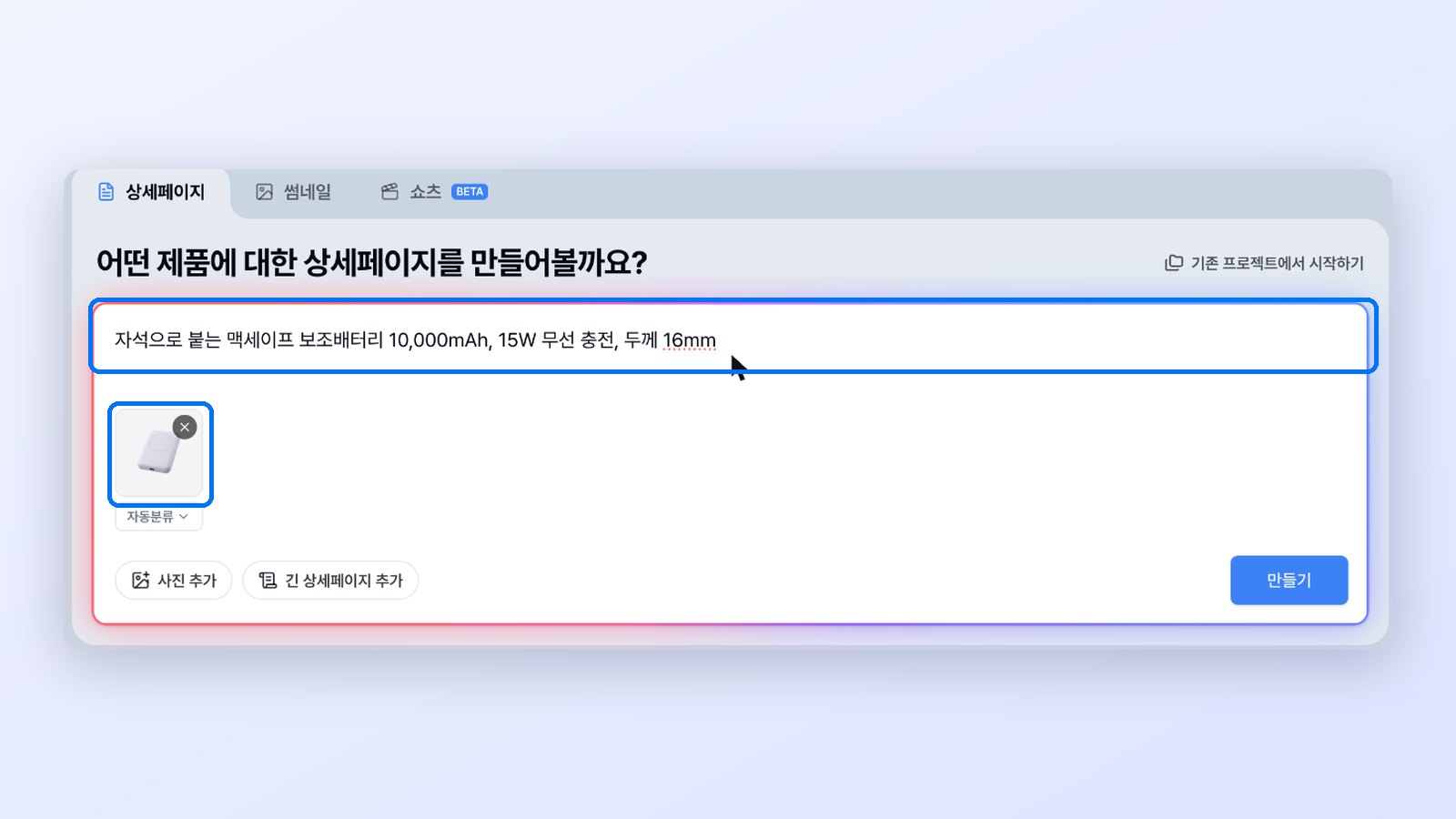
CreazyThe Studio home screen with a product photo and a one-line description
When the next screen opens, the category and product name are already filled in. This time the category was set to "Digital/Accessories," and the product name came straight from our description. If you sell the product under a different category, change it on this screen.
4. Step 2: Do you have to write the product features yourself?
The features field starts with the line you wrote. Click the AI fill button next to it, and five selling points are ready in under 30 seconds.
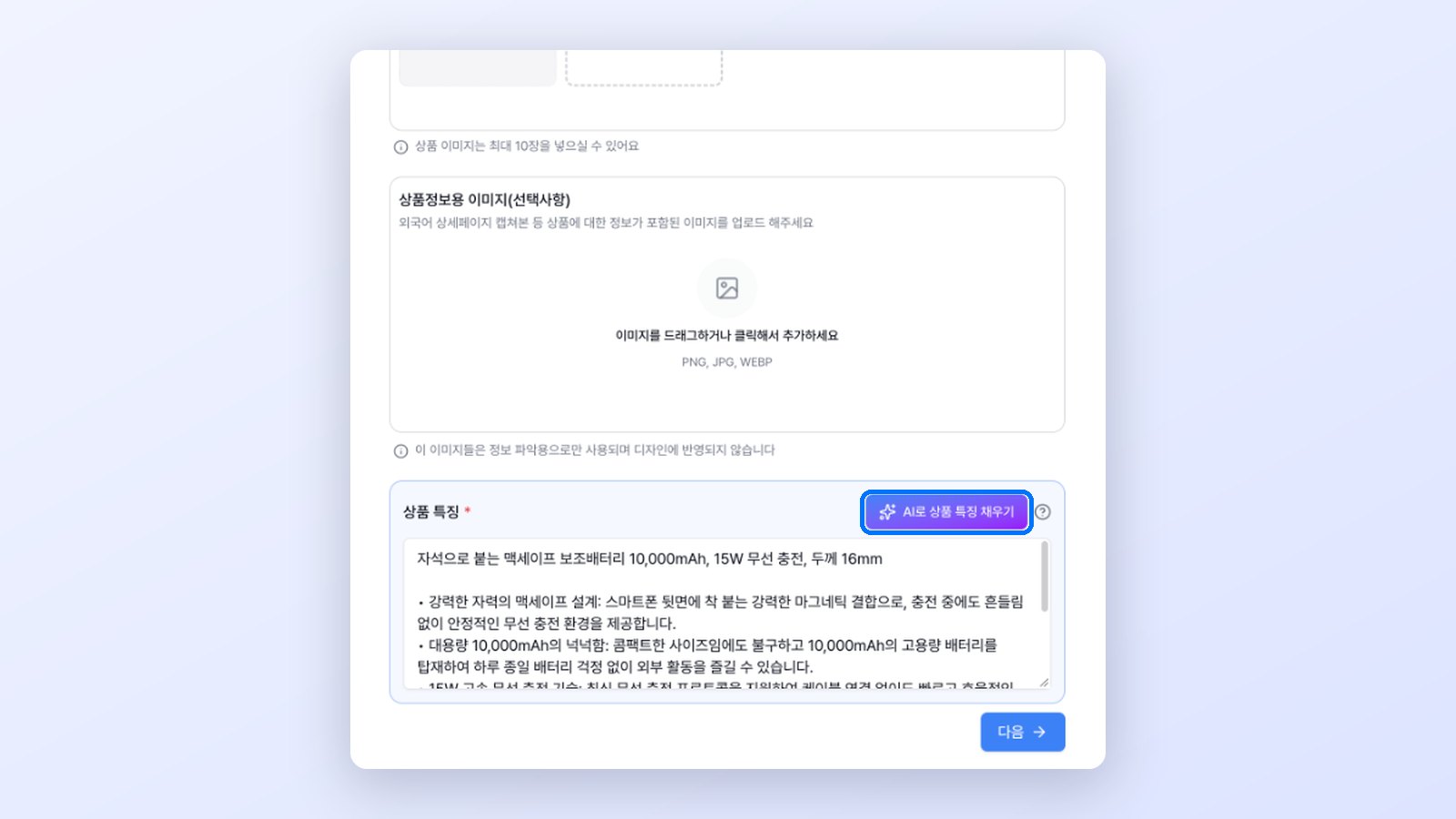
CreazyProduct features filled in with one click
Everything in this field becomes raw material for the copy later, so this is the fastest place to polish a sentence. Our result included phrases we never wrote, such as "latest wireless charging protocol." Delete or rewrite anything that doesn't fit your product here, and the change carries through the whole finished page.
If you have a capture of a foreign-language page or a spec table, add it to the product information image field. Those images help the AI understand the product and don't appear in the design.
5. Step 3: What goes into the design request?
Click next to open the design request screen. You can leave it blank and carry on, but if you have a mood in mind or conditions the page must follow, write them here.
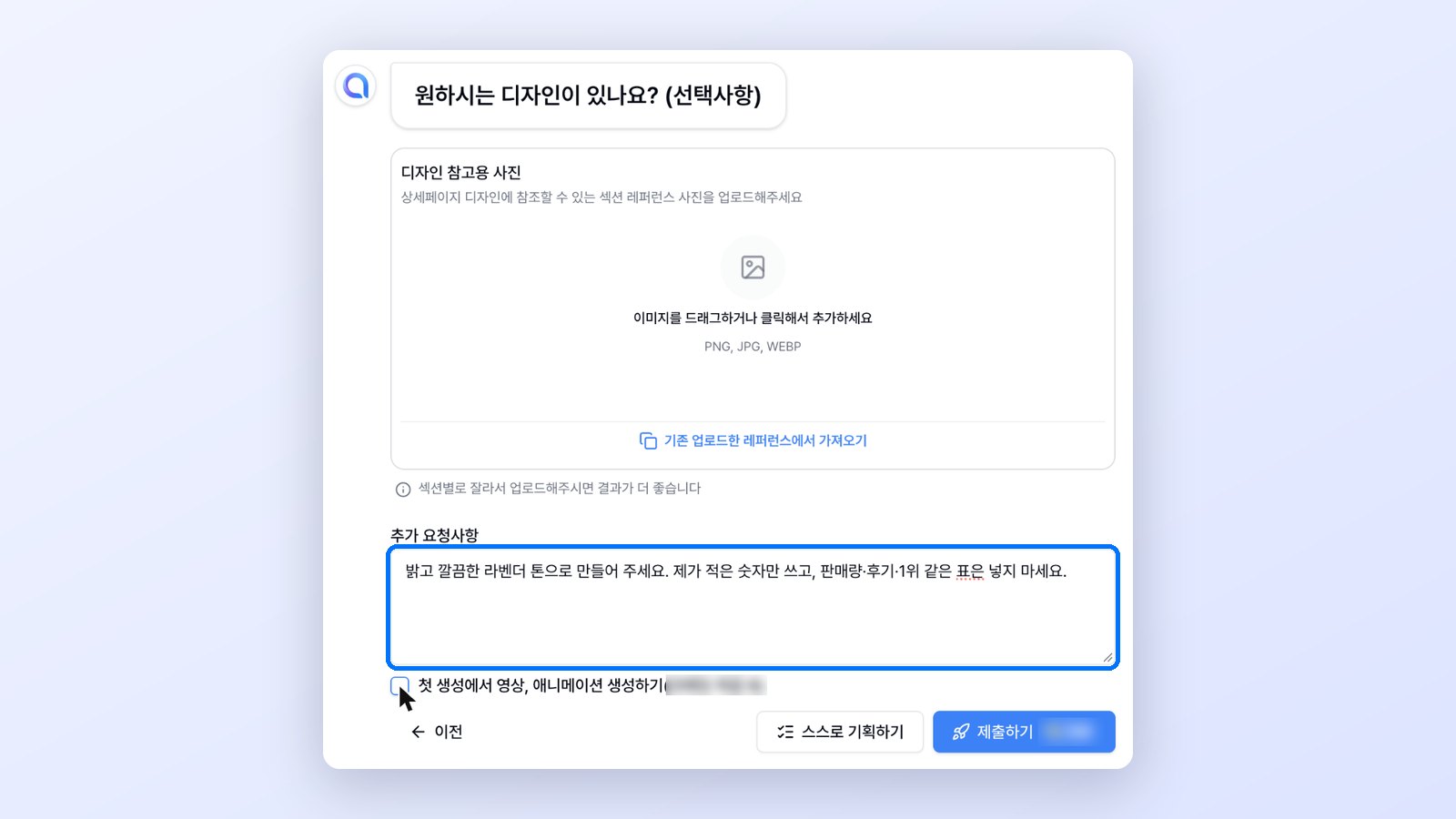
CreazyThe screen for design reference photos and additional requests
Here is what we did with each field.
- Design reference photos: We left this empty. If you like another page, cut it into sections and upload them. The AI takes only the mood and design, not the content.
- Additional requests: We wrote, "Make it bright and clean in a lavender tone. Use only the numbers I gave you, and don't include sales figures, reviews, or claims like No. 1."
- Generate video and animation on first creation: This is on by default, so you can get a moving detail page in one pass. We turned it off this time to look at a still-image page.
When you're done, click submit.
6. Step 4: What does the AI make after you submit?
After you submit, the editor opens and progress updates appear one by one in the chat panel on the right. There's nothing you need to do. Creazy works in this order.
| Order | What you see on screen |
|---|---|
| 1 | The product information and requests you entered are summarized in the chat, and analysis begins |
| 2 | 13 lifestyle images showing the product in use appear in the chat |
| 3 | Sections fill the canvas one after another from the top |
| 4 | All 18 sections are done and the editing chat is ready to use |
We never took extra photos, yet the AI created lifestyle images of the product in use and placed them in each section. The section structure and copy come out of the same process.
7. Step 5: What does the finished page look like?
The page built from one line of description came out in this order. First screen (Hero), customer problem (Problem), product story (Story), key summary (Summary), three pairs of selling points and details, before and after, usage scenes, compatible devices, how to use, FAQ, product information, and shipping. The AI lays out the basic structure of a detail page that sells, starting from the planning stage.
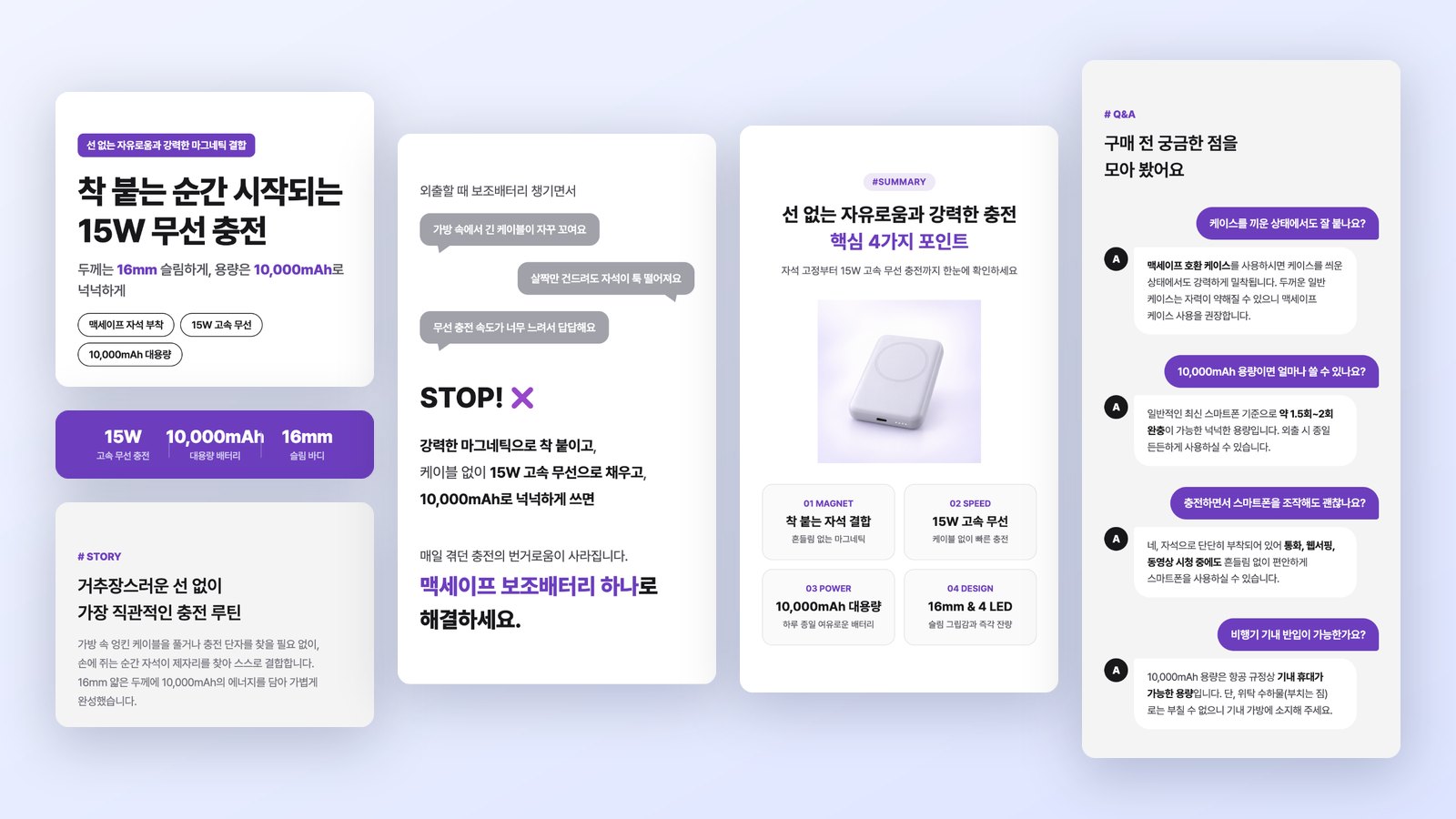
CreazySections of the power bank detail page made from one line of description
CreazyScrolling through the finished sample product page from top to bottom
On the first read, look at the words before the design. Pause at sections with numbers, compatible devices, or shipping details, and compare them with the checklist table in section 10 below. It goes quickly that way.
If you'd rather write the planning prompts yourself, see AI Product Detail Page Prompts. This post shows the result when we left that planning to Creazy too.
8. Step 6: How do you fix the parts you don't like?
You have two ways to edit, and they suit different jobs. Even if the first result isn't what you wanted, there's no need to start over.
CreazyEditing the headline text directly, then changing text size and color through chat
| Click to edit text | Edit through chat | |
|---|---|---|
| How | Double-click text on the canvas and type | Ask in plain words in the chat panel on the right |
| What we did | Changed the headline from "15W fast wireless charging" to "15W wireless charging" | Asked to "make the card titles in section 4 a little bigger and deepen the lavender across the page slightly" |
| Applied | Instantly | Within 40 seconds |
| Best for | A few words, numbers, or sentences | Color and size in many places, adding or deleting sections |
| Works well with | The left editing panel for font, size, and color | Tagging a section to edit only that part |
This chat request took the card titles from 15px to 17px and made the lavender accent one shade deeper. What you ask for in words is applied across the page in one go.
While you're subscribed, edits, additions, and deletions through the AI chat are unlimited and use no credits. However many times you change the tone of the copy or the layout, your remaining credits stay the same. Free accounts get 5 chats per project, so fix single words by clicking and save chat for page-wide changes, and you'll have plenty.
9. What formats can you export the finished page in?
Click export at the top right to choose a format. Creazy exports to images, Photoshop, Figma, and web publishing.
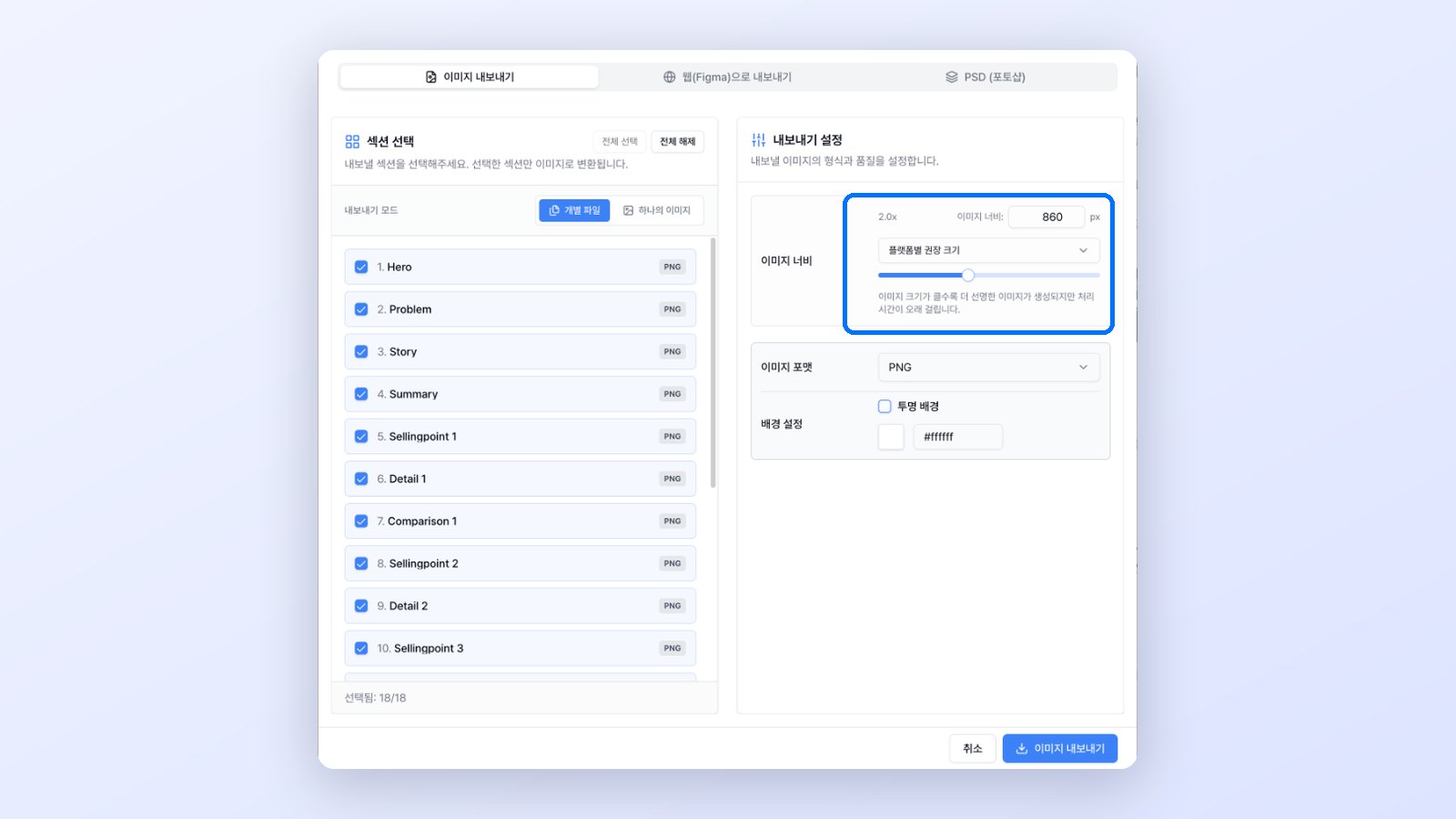
CreazyThe export screen for choosing sections and setting the image width for each marketplace
- Images: Pick sections and save them as separate files or as one long image. For width, choose from Naver Smart Store 860px, Coupang 780px, and the sizes for Gmarket, Ohouse, and 11st, or enter your own.
- Photoshop: Download a Photoshop file with editable text and keep working on it with your designer.
- Figma: Bring the web-published address into Figma with the html.to.design plugin and keep editing there.
The 2 detail pages you can make with the free credits you get at sign-up can be exported the same way.
10. What should you check before publishing?
As we asked, this page had no sales figures, reviews, or ranking claims. Creazy fills in everything a sales page needs, including how to use, shipping details, and the product information table, so the seller only has to match the items below against their own documents.
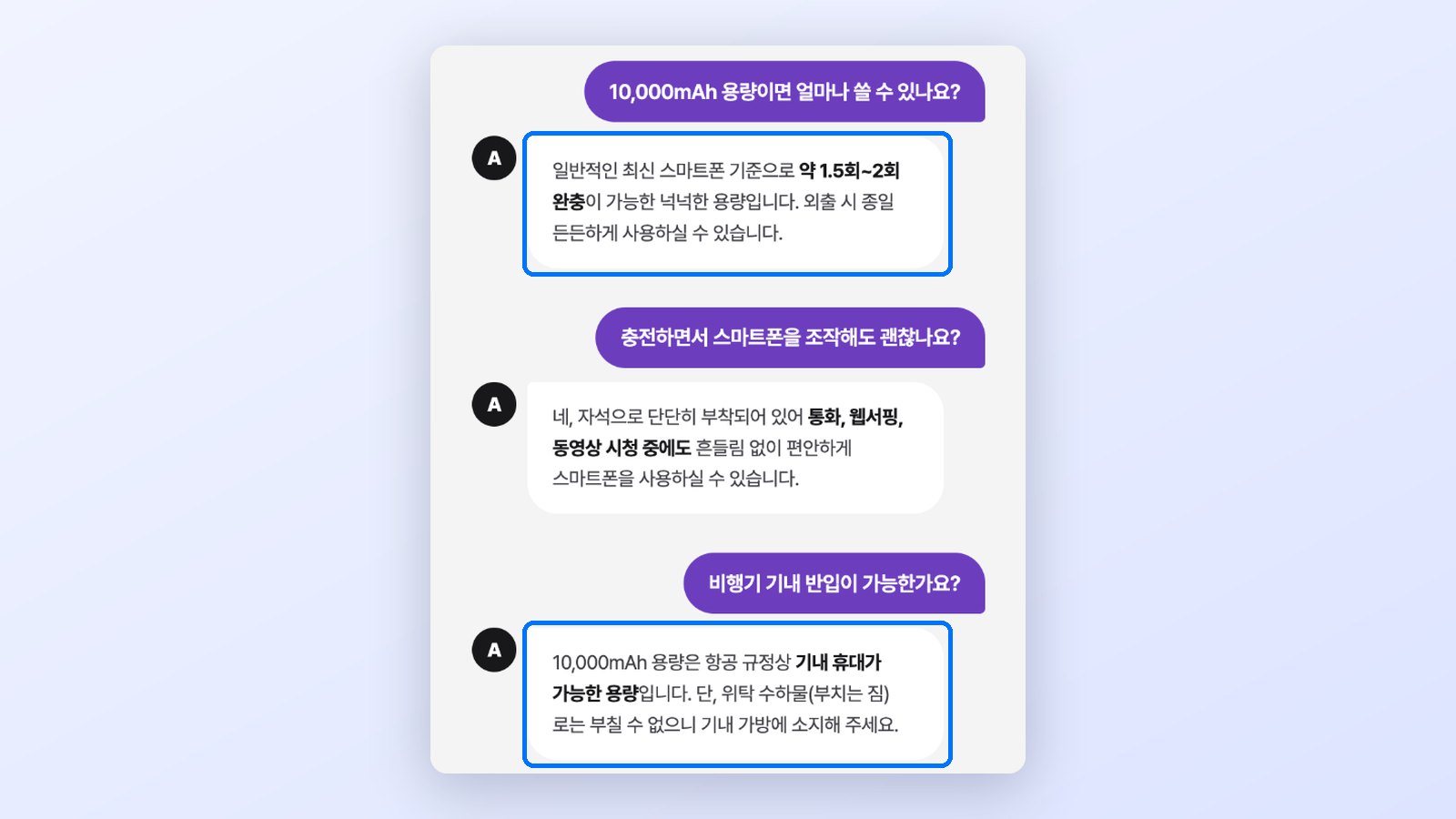
CreazyThe charge count and in-flight carry notice the AI filled in
| What to check | Example from this page | Check it against |
|---|---|---|
| Numbers you didn't enter | "About 1.5 to 2 full charges" | Your own measurements, manufacturer specs |
| Rules and regulations | Notes on carry-on and checked baggage | Current rules from airlines and authorities |
| Compatibility | List of compatible devices and advice on cases | Your actual compatibility tests |
| How it works | Checking the charge level with the power button | The real product, the user manual |
| Benefit claims | Phrases like "all day" | Supporting evidence |
| Sales terms | Same-day dispatch cutoff, exchange and return period | Your actual policies |
| Product information table | Product name, capacity, ports, warranty standard | The fields your sales channel requires |
| Lifestyle images | Product shape, port position, number of indicator lights | Real product photos |
Fix anything that doesn't match right away with the click editing in section 8. For categories with rules on wording, such as cosmetics and health supplements, list the claims to avoid in the additional requests in Step 3 beforehand, and you'll have less to fix.
To sum up, in this project Creazy made the planning, copy, lifestyle images, design, and marketplace-sized images, and the seller added a photo and one line of description, then reviewed and polished the result. For the concept behind it, read What Is AI Product Detail Page Creation? For how dedicated tools differ from general-purpose AI, read AI detail page tools and general-purpose AI.
11. FAQ
Can I make a detail page with only one photo?
Yes. This page was made from one product photo too. The AI creates lifestyle images for the usage scenes. If you have more photos, you can upload them together.
Do I need to write a prompt?
No. We wrote one line of description and one short paragraph of requests. Add requests only when you have a mood in mind or claims to avoid.
How long does it take?
Once you add a photo and description and submit, Creazy builds a detail page draft in 3 minutes. Filling in product features took under 30 seconds, and chat edits were applied within 40 seconds.
Can I publish the AI's page as it is?
Match the numbers and sales terms against your own documents once using the checklist table in section 10, then publish. Fix anything that needs it right away by clicking or through chat.
Can I make one for free?
You can make 2 detail pages for free when you sign up, and pages made for free can be exported too.
Can I save it at a size ready for Naver Smart Store?
Yes. Choose Naver Smart Store 860px under image width on the export screen, and you'll get the file at that width. You can also pick other marketplace sizes, including Coupang 780px.
12. Wrapping up
All it takes to make a detail page with AI is one photo and one line of description. Creazy builds a draft from planning to design in 3 minutes, and the page you polish with clicks and chat goes out as marketplace-sized images, a Photoshop file, or to Figma.
Start with one product you're selling now. With the free credits you get at sign-up, you can make and export 2 detail pages.