[October Update] Now You Can Download Your Creazy Product Detail Pages as Photoshop Files
Here is what's new in Creazy for October. Download product detail pages as Photoshop files, split a long detail page image into sections, and start right from the home input box.

Hello, this is the Creazy team.
October made it easier to create, edit, and export product detail pages. You can now download a page you built in Creazy as a Photoshop file and keep editing it there, and you can split one long detail page image into sections. Here is what's new and where to find each feature.
Summary
- Download product detail pages as Photoshop (PSD) files and edit text and photos in Photoshop.
- Upload a long detail page image and split it into sections for the input box.
- Type one line and add photos in the home input box to start a product detail page right away.
- In AI chat, pick the section to edit with @ and paste links for the AI to read.
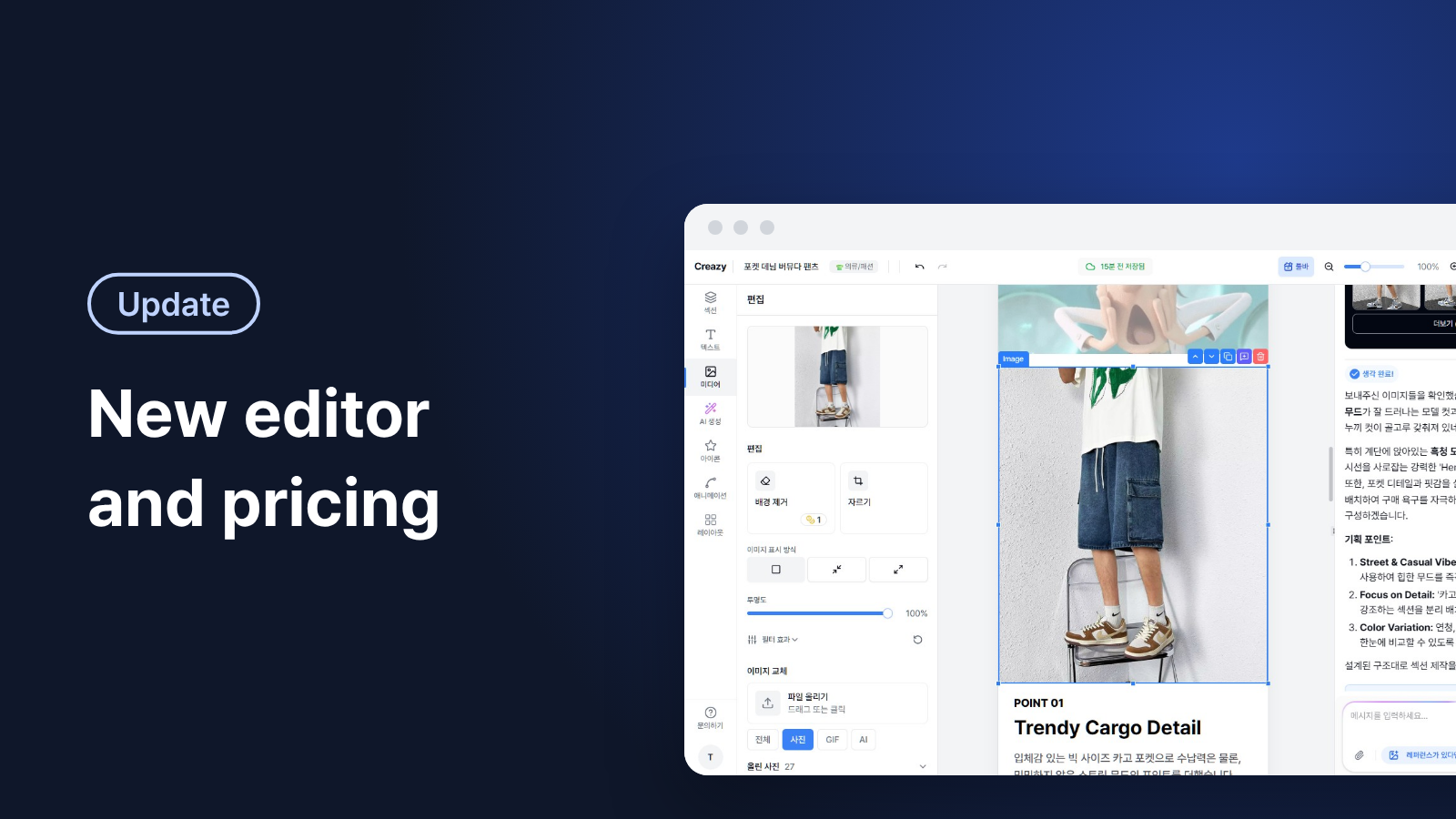
- The editor adds photo repositioning, drag and drop, a layer order list, image flipping, and new animations.
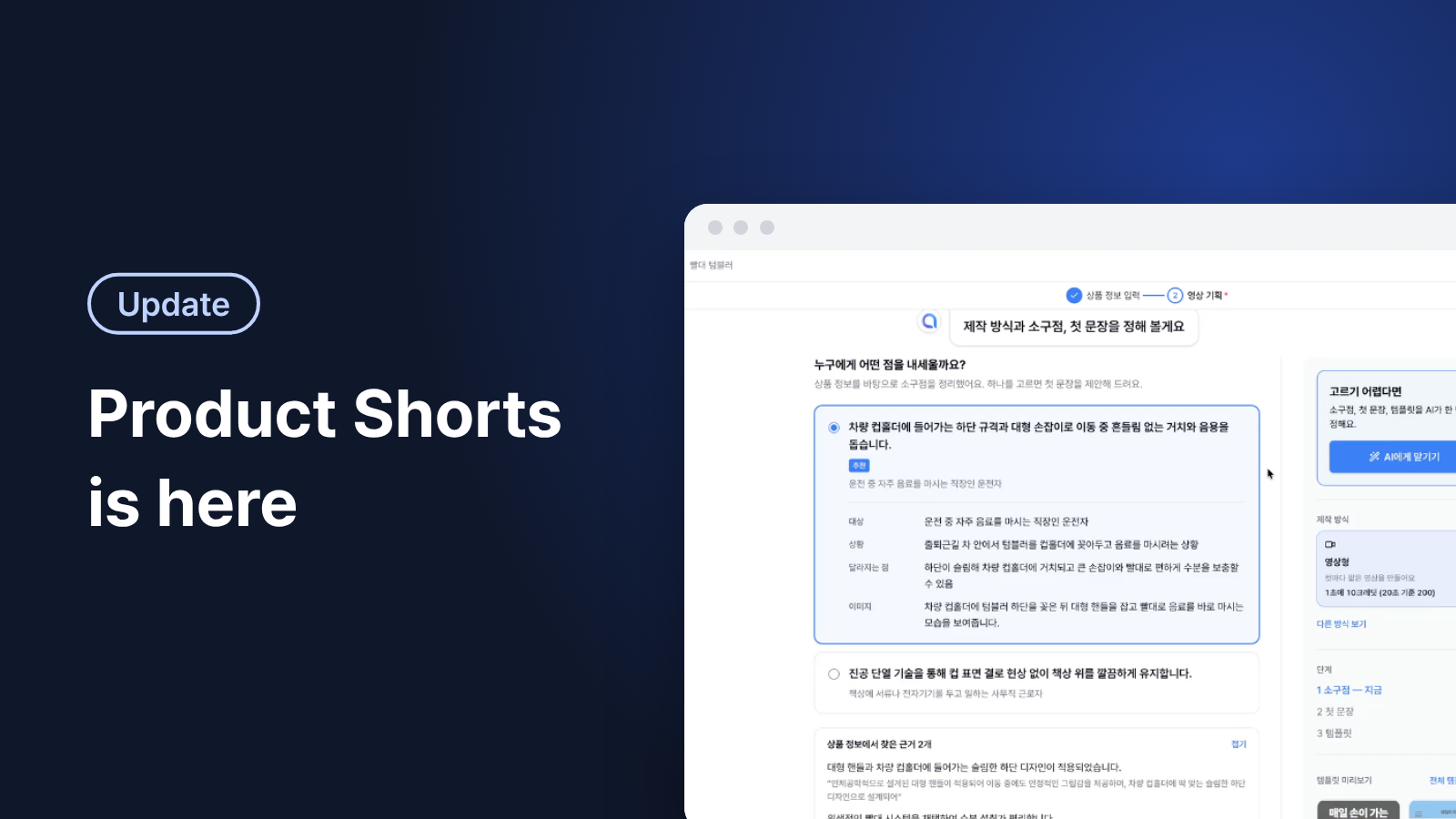
- Shorts can start from your own footage, and AI video shorts dropped from 10 to 7 credits per second.
What features were added in October?
| Area | What's new | What you can do now |
|---|---|---|
| Export | Photoshop (PSD) export | Edit text and swap photos in Photoshop |
| Create | Long detail page splitting | Split one long image into section pieces |
| Create | New home screen | Start a product detail page from the home input box |
| AI chat | @ section picking, link reading | Point to the exact section and let the AI read product links |
| Editor | Photo repositioning and 6 more | Move photos inside their frame and reorder layers from a list |
| Shorts | Your own footage, lower credits | Start from your videos and make AI video shorts for 30% fewer credits |
What does Photoshop export make easier?
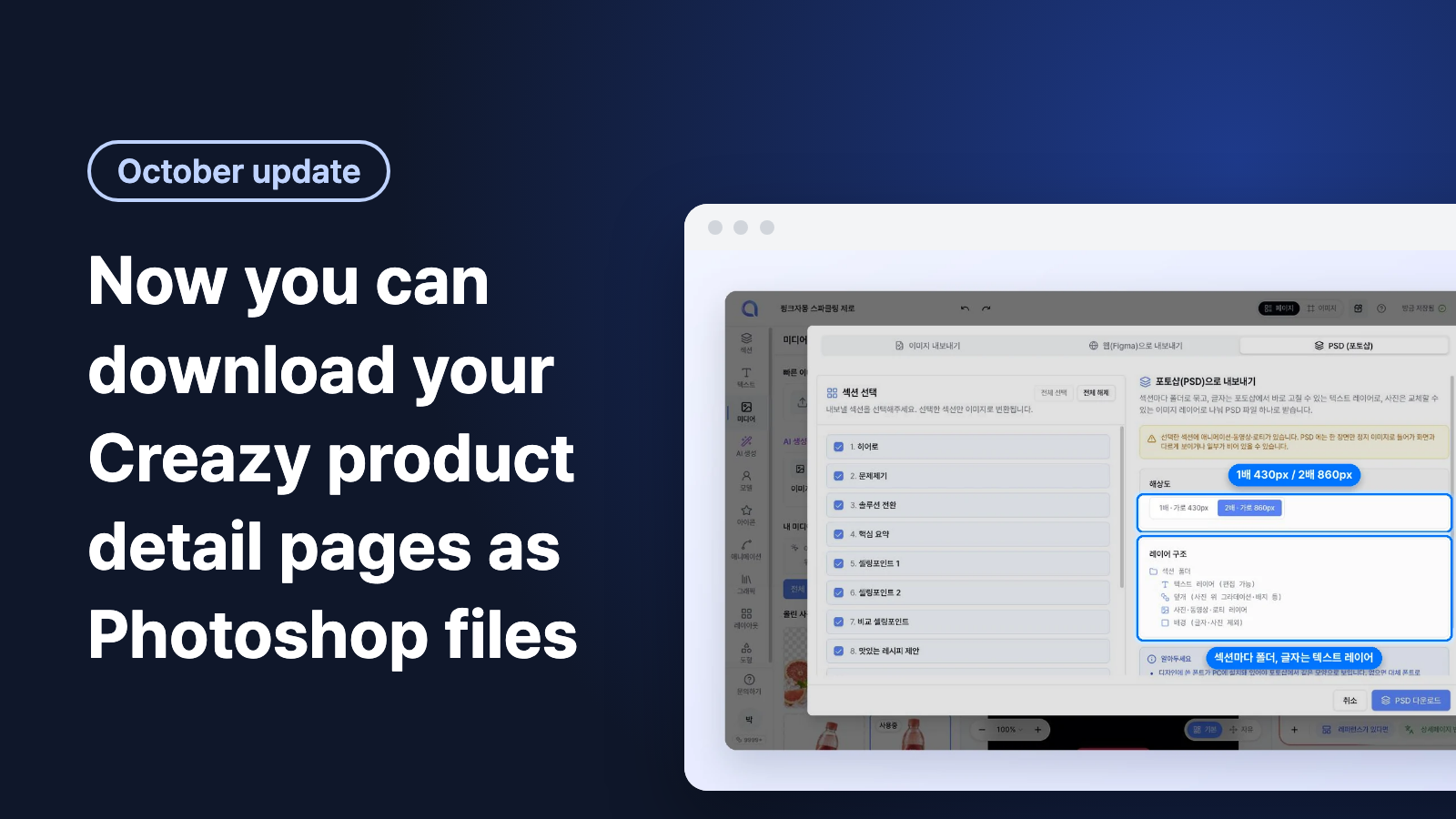
You can now download a product detail page made in Creazy as a Photoshop (PSD) file. We built it for when you want a designer to do the final polish, or when you want to fine-tune the page in Photoshop before it goes on your store.
Before, changing a single line of copy in a downloaded image meant going back to Creazy, editing, and exporting again. Now text and photos come in as separate layers, so you can rewrite copy and swap photos directly in Photoshop.
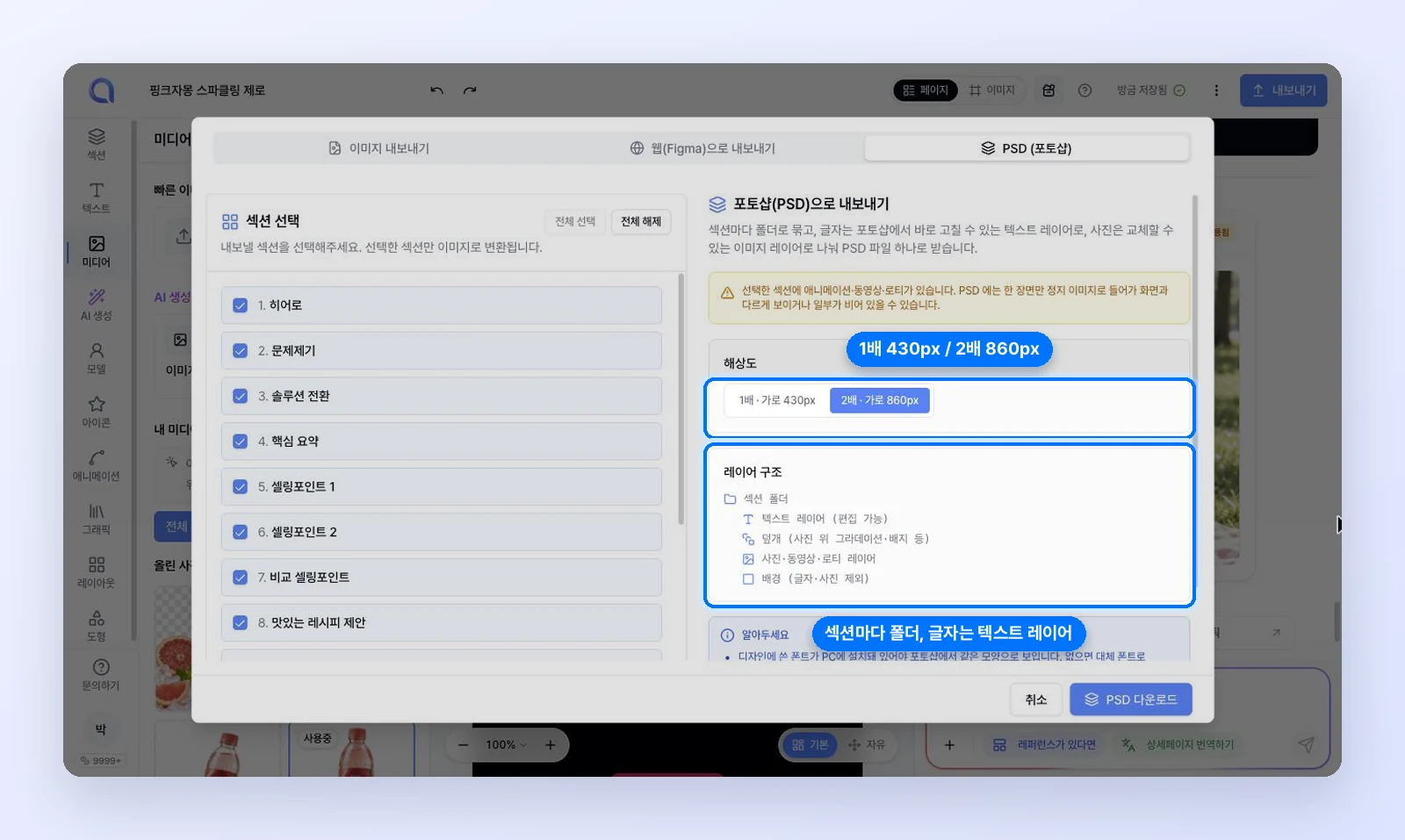
The Photoshop export window, labeled PSD on the tab. The screen is shown in Korean. (Fictional product)
Try it. Open Export in the editor, choose the PSD (Photoshop) tab, pick the sections and resolution, and click [Download PSD]. If Photoshop asks whether to update text layers when you open the file, click [Update] so the text stays editable. Photoshop export is available on the Basic plan and above. Details are in the Export guide (in Korean).
How do I split a long detail page image?
If a detail page you want to reference is one long image, you can now upload it to Creazy as is and split it into sections. We built this so you no longer have to cut long images into pieces yourself first.
Before, you had to cut each section in an image editor, save the pieces, and upload them one by one. Now you upload one long image, see where it will be cut, move, add, or delete the lines as you like, and put the pieces into the input box.
Adjusting the cut lines and adding the pieces to the input box. The screen is shown in Korean. (Fictional product)
Try it. Click [Add long detail page] in the home input box, then [Choose image] to upload the long image. The full steps are in the long detail page guide (in Korean).
What changed on the home screen?
The studio home is now a single input box. Describe the product you want to make in one sentence, add photos, and click [Create] to start. You can begin right from home without looking through menus.
Before, you had to fill in the brief yourself from scratch. Now the project name, category, and brief fields are filled in for you from your sentence and photos. If a photo shows product information, Creazy reads that text and adds it to the product features. You can upload up to 25 photos at once.
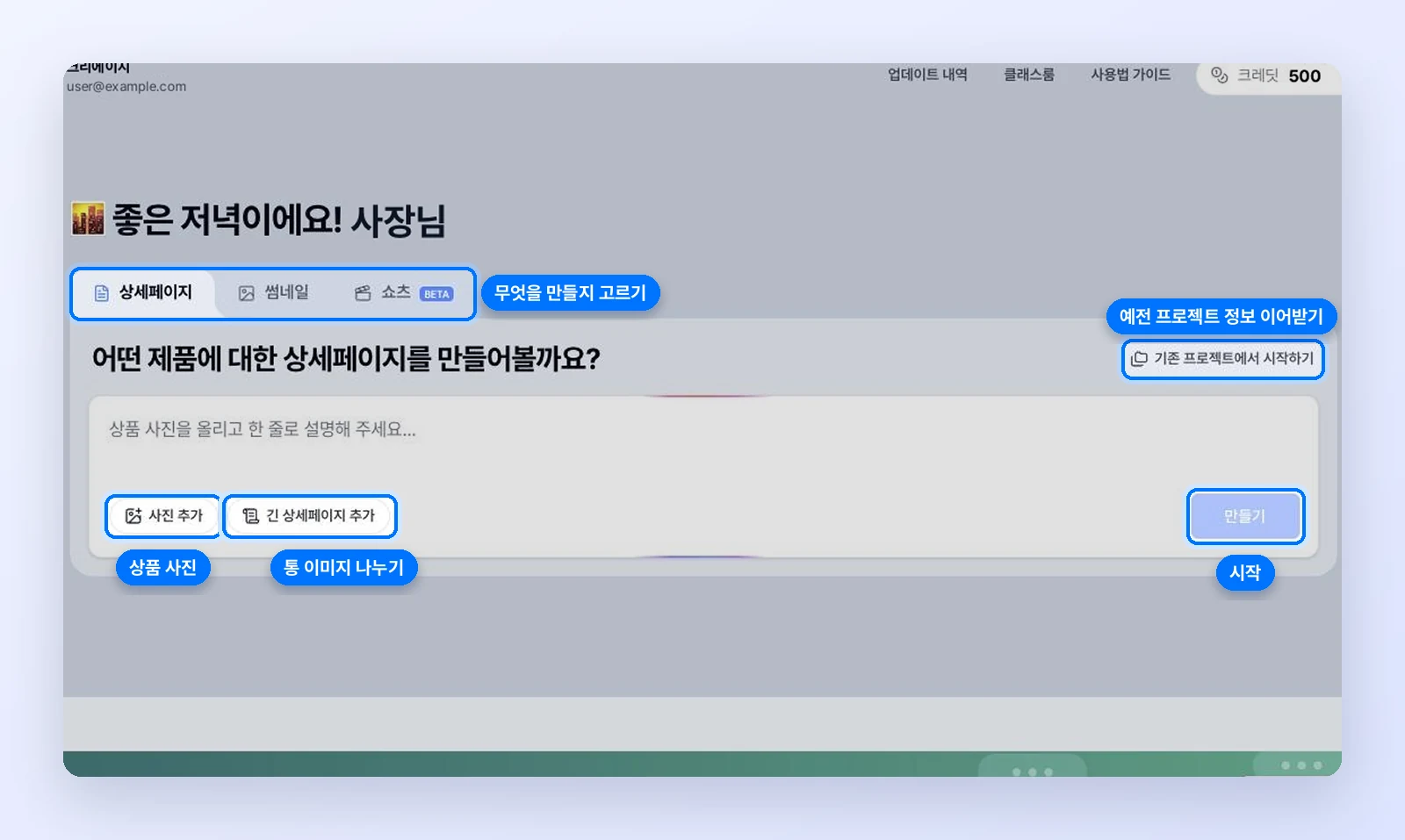
The input box on the new home screen. The screen is shown in Korean.
Try it. On the home screen you see after logging in, pick Detail page, Thumbnail, or Shorts above the input box and start. To reuse product information from an earlier project, click [Start from an existing project]. The screen is explained in the home screen guide (in Korean).
What got easier when editing with AI chat?
AI chat gained three things, so you can fix exactly the part you want without explaining the same thing twice.
- Pick a section with @: Type @ in the input box, or click [Edit a specific section] in the [+] menu, to see the section list. Choose the section and write your request.
- Link reading: Paste a link such as a product page and the AI reads it for reference. Some stores block reading, and in that case the AI asks you to paste the content instead.
- Fixing what it sees: Say things like "the text is cut off" or "it overlaps the photo," and the AI checks the rendered screen, finds the problem, and fixes it.
Before, you had to describe which section you meant and copy product details by hand. Now you just point to the section and paste the link.
Try it. Type @ in the AI chat input box in the editor. More tips are in the AI chat guide (in Korean).
What new conveniences are in the editor?
We added seven features so common edits can be finished right inside the editor.
| Feature | What you can do now |
|---|---|
| Photo repositioning | Double-click a photo to move and enlarge it inside its frame |
| Drag and drop photos | Drag photos from your computer straight onto a section |
| Layer order list | See how elements are stacked under "Order" in the Layout tab and drag to reorder |
| Image flipping | Flip images horizontally or vertically |
| Recent colors | Colors you used recently gather in the "Recent" tab of the color picker |
| New animations | Scrolling band, hand-drawn highlight, and sequential check, plus a springy motion option |
| NanumSquare font | Choose NanumSquare from the font list |
Photo repositioning keeps the frame and moves or enlarges only the photo inside it. (Fictional product)
You no longer have to crop a photo separately and upload it again just to change the framing. You can drop photos onto a section without opening the upload panel, and reorder overlapping elements from the list.
Try it. Double-click a photo inside a section in the editor. Working with photos is covered in the images and videos guide (in Korean).
What changed in Shorts?
Can I start shorts from my own footage?
Yes. In the Shorts tab on the home screen, upload videos you shot yourself and start right away. We built this for when you want to make use of product videos you already have. MOV files from an iPhone work too, and cuts filled with your uploaded videos cost no credits.
How much did AI video shorts credits drop?
AI video shorts went from 10 to 7 credits per second, a 30% drop. A 20-second short that used to cost 200 credits now costs 140.
Try it. Pick the Shorts tab on the home screen and start. The full steps are in the shorts guide (in Korean).
Where can I see earlier updates?
FAQ
Can I use Photoshop export on the free plan?
No. Photoshop export is available on the Basic plan and above. Image export is available on every plan.
Can I edit the text in the Photoshop file?
Yes. Text comes in as text layers. The fonts used in the design need to be installed on your computer for you to edit them.
Do shorts made from my own footage cost credits?
Cuts filled with your uploaded videos cost no credits. Only the cuts the AI creates cost credits.
Can I try Creazy for free?
Yes. You can make two product detail pages for free after signing up, with no trial time limit.
Where should I start with the October features?
Start with Photoshop export and long detail page splitting. If you already have a product detail page, download it as a Photoshop file. If there is a detail page you want to reference, upload it to the home input box and split it into sections. Creazy makes a first draft of a product detail page from one photo in 3 minutes.
Tip: You can check new features anytime under Updates at the top right of the studio.